
ShotGrid MCP
STDIO高性能ShotGrid MCP服务器,用于媒体制作流程管理
高性能ShotGrid MCP服务器,用于媒体制作流程管理
English | 简体中文
A high-performance ShotGrid Model Context Protocol (MCP) server implementation based on fastmcp





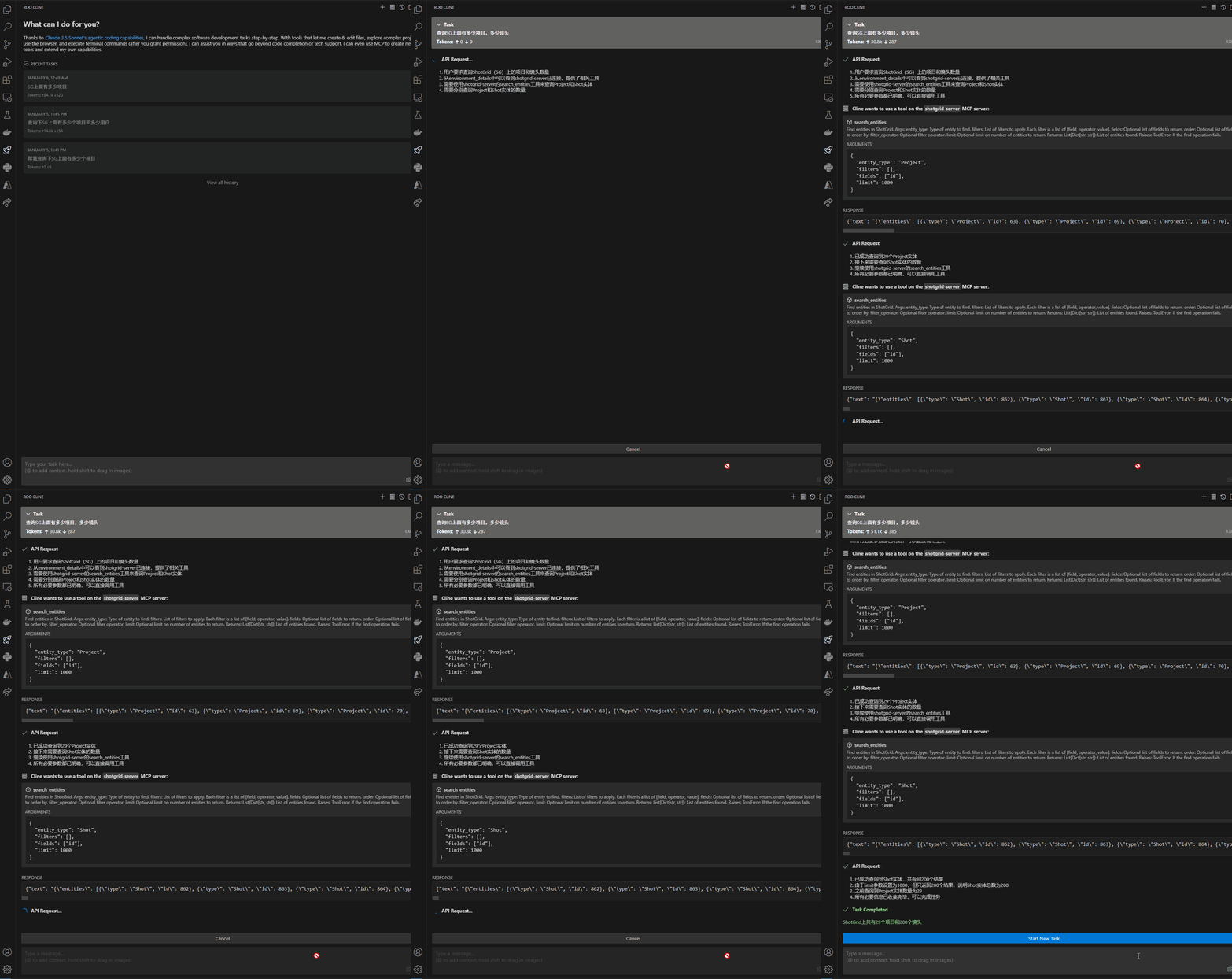
Here's a simple example of querying entities using the ShotGrid MCP server:
Install using UV:
uv pip install shotgrid-mcp-server
Once installed, you can start the server directly with:
For local MCP clients (like Claude Desktop, Cursor, etc.):
uvx shotgrid-mcp-server
This will start the ShotGrid MCP server with stdio transport, which is the default mode for local MCP clients.
For web-based deployments or remote access:
# Start with HTTP transport on default port (8000)
uvx shotgrid-mcp-server http

# Start with custom host and port
uvx shotgrid-mcp-server http --host 0.0.0.0 --port 8080

# Start with custom path
uvx shotgrid-mcp-server http --path /api/mcp
The HTTP transport uses the Streamable HTTP protocol, which is recommended for web deployments and allows remote clients to connect to your server.
HTTP transport mode supports configuring ShotGrid credentials via HTTP request headers, enabling a single server instance to serve multiple ShotGrid sites:
Server Configuration:
# Set default environment variables (required for server startup)
export SHOTGRID_URL="https://default.shotgunstudio.com"
export SHOTGRID_SCRIPT_NAME="default_script"
export SHOTGRID_SCRIPT_KEY="default_key"

# Start HTTP server
uvx shotgrid-mcp-server http --host 0.0.0.0 --port 8000
Client Configuration:
In your MCP client configuration, add custom HTTP headers for each ShotGrid site:
{
  "mcpServers": {
    "shotgrid-site-1": {
      "url": "http://your-server:8000/mcp",
      "transport": {
        "type": "http",
        "headers": {
          "X-ShotGrid-URL": "https://site1.shotgunstudio.com",
          "X-ShotGrid-Script-Name": "my_script",
          "X-ShotGrid-Script-Key": "abc123..."
        }
      }
    },
    "shotgrid-site-2": {
      "url": "http://your-server:8000/mcp",
      "transport": {
        "type": "http",
        "headers": {
          "X-ShotGrid-URL": "https://site2.shotgunstudio.com",
          "X-ShotGrid-Script-Name": "another_script",
          "X-ShotGrid-Script-Key": "xyz789..."
        }
      }
    }
  }
}
This allows you to configure multiple ShotGrid site instances in the same MCP client, each with different credentials.
Notes:
For production deployments, you can use the standalone ASGI application with any ASGI server.
Note: The ASGI application uses lazy initialization - the ShotGrid connection is only created when the first request arrives, not during module import. This prevents connection errors during Docker builds or application startup.
# Development mode with Uvicorn
uvicorn shotgrid_mcp_server.asgi:app --host 0.0.0.0 --port 8000 --reload

# Production mode with multiple workers
uvicorn shotgrid_mcp_server.asgi:app --host 0.0.0.0 --port 8000 --workers 4

# Using Gunicorn with Uvicorn workers (recommended for production)
gunicorn shotgrid_mcp_server.asgi:app \
    -k uvicorn.workers.UvicornWorker \
    --bind 0.0.0.0:8000 \
    --workers 4

# Using Hypercorn
hypercorn shotgrid_mcp_server.asgi:app --bind 0.0.0.0:8000
Custom ASGI App with Middleware:
Create a custom app.py file:
from starlette.middleware import Middleware
from starlette.middleware.cors import CORSMiddleware
from shotgrid_mcp_server.asgi import create_asgi_app

# Configure CORS for your domain
cors_middleware = Middleware(
    CORSMiddleware,
    allow_origins=["https://yourdomain.com"],
    allow_credentials=True,
    allow_methods=["GET", "POST"],
    allow_headers=["*"],
)

# Create app with middleware
app = create_asgi_app(
    middleware=[cors_middleware],
    path="/mcp"
)
Then deploy it:
uvicorn app:app --host 0.0.0.0 --port 8000 --workers 4
Cloud Platform Deployment:
The ASGI application can be easily deployed to cloud platforms like:
See the Deployment Guide for detailed instructions.
git clone https://github.com/loonghao/shotgrid-mcp-server.git
cd shotgrid-mcp-server
pip install -r requirements-dev.txt
noxfile.py for available commands:# Run tests nox -s tests # Run linting nox -s lint # Run type checking nox -s type_check # And more...
Note: This requires Node.js to be installed on your system.
For a better development experience with hot reloading (server automatically restarts when code changes):
uv run fastmcp dev src/shotgrid_mcp_server/server.py:app
This will start the server in development mode, and any changes to the code will automatically reload the server.
The following environment variables are required:
SHOTGRID_URL=your_shotgrid_url
SHOTGRID_SCRIPT_NAME=your_script_name
SHOTGRID_SCRIPT_KEY=your_script_key
You can set them directly in your shell:
# PowerShell
$env:SHOTGRID_URL='your_shotgrid_url'
$env:SHOTGRID_SCRIPT_NAME='your_script_name'
$env:SHOTGRID_SCRIPT_KEY='your_script_key'
# Bash
export SHOTGRID_URL='your_shotgrid_url'
export SHOTGRID_SCRIPT_NAME='your_script_name'
export SHOTGRID_SCRIPT_KEY='your_script_key'
Or create a .env file in your project directory.
create_entity: Create ShotGrid entitiesfind_one_entity: Find a single entitysearch_entities: Search for entities with filtersupdate_entity: Update entity datadelete_entity: Delete entitiesdownload_thumbnail: Download entity thumbnailsupload_thumbnail: Upload entity thumbnailsshotgrid.note.create: Create notesshotgrid.note.read: Read note informationshotgrid.note.update: Update note contentcreate_playlist: Create playlistsfind_playlists: Find playlists with filterssg.find: Direct access to ShotGrid API find methodsg.create: Direct access to ShotGrid API create methodsg.update: Direct access to ShotGrid API update methodsg.batch: Direct access to ShotGrid API batch methodHere are some examples of how to use ShotGrid MCP with AI assistants like Claude:
Help me find all ShotGrid entities updated in the last 3 months.
Show me all shots that were updated last week for the "Awesome Project".
Create a playlist called "Daily Review - April 21" with all shots updated yesterday by the lighting department.
Find all playlists created this week.
Add a note to SHOT_010 saying "Please adjust the lighting in the background to be more dramatic".
Help me summarize the time logs for the "Animation" department this month and generate a chart using echarts to visualize the hours spent.
Find all shots that were updated yesterday by the lighting team, create a playlist called "Lighting Review - April 21", and notify the director via a note.
For detailed documentation, please refer to the documentation files in the /docs directory.
You can also explore the available tools and their parameters directly in Claude Desktop after installing the server.
Contributions are welcome! Please ensure:
See CHANGELOG.md for detailed version history.
MIT License - see the LICENSE file for details.
To use the ShotGrid MCP server in your MCP client, add the appropriate configuration to your client's settings.
{
  "mcpServers": {
    "shotgrid-server": {
      "command": "uvx",
      "args": [
        "--python", "3.10",
        "shotgrid-mcp-server"
      ],
      "env": {
        "SHOTGRID_SCRIPT_NAME": "XXX",
        "SHOTGRID_SCRIPT_KEY": "XX",
        "SHOTGRID_URL": "XXXX"
      },
      "disabled": false,
      "alwaysAllow": [
        "search_entities",
        "create_entity",
        "batch_create",
        "find_entity",
        "get_entity_types",
        "update_entity",
        "download_thumbnail",
        "batch_update",
        "delete_entity",
        "batch_delete"
      ]
    }
  }
}
// .cursor/mcp.json
{
  "mcpServers": {
    "shotgrid-server": {
      "command": "uvx",
      "args": [
        "shotgrid-mcp-server"
      ],
      "env": {
        "SHOTGRID_SCRIPT_NAME": "XXX",
        "SHOTGRID_SCRIPT_KEY": "XX",
        "SHOTGRID_URL": "XXXX"
      }
    }
  }
}
// MCP configuration
{
  "mcpServers": {
    "shotgrid-server": {
      "command": "uvx",
      "args": [
        "shotgrid-mcp-server"
      ],
      "env": {
        "SHOTGRID_SCRIPT_NAME": "XXX",
        "SHOTGRID_SCRIPT_KEY": "XX",
        "SHOTGRID_URL": "XXXX"
      }
    }
  }
}
// MCP configuration
{
  "mcpServers": {
    "shotgrid-server": {
      "command": "uvx",
      "args": [
        "shotgrid-mcp-server"
      ],
      "env": {
        "SHOTGRID_SCRIPT_NAME": "XXX",
        "SHOTGRID_SCRIPT_KEY": "XX",
        "SHOTGRID_URL": "XXXX"
      }
    }
  }
}
// .vscode/mcp.json
{
  "inputs": [
    {
      "type": "promptString",
      "id": "shotgrid-script-name",
      "description": "ShotGrid Script Name",
      "password": false
    },
    {
      "type": "promptString",
      "id": "shotgrid-script-key",
      "description": "ShotGrid Script Key",
      "password": true
    },
    {
      "type": "promptString",
      "id": "shotgrid-url",
      "description": "ShotGrid URL",
      "password": false
    }
  ],
  "servers": {
    "shotgrid-server": {
      "type": "stdio",
      "command": "uvx",
      "args": ["shotgrid-mcp-server"],
      "env": {
        "SHOTGRID_SCRIPT_NAME": "${input:shotgrid-script-name}",
        "SHOTGRID_SCRIPT_KEY": "${input:shotgrid-script-key}",
        "SHOTGRID_URL": "${input:shotgrid-url}"
      }
    }
  }
}
// settings.json
{
  "mcp": {
    "shotgrid-server": {
      "type": "stdio",
      "command": "uvx",
      "args": ["shotgrid-mcp-server"],
      "env": {
        "SHOTGRID_SCRIPT_NAME": "XXX",
        "SHOTGRID_SCRIPT_KEY": "XX",
        "SHOTGRID_URL": "XXXX"
      }
    }
  },
  "chat.mcp.discovery.enabled": true
}
In the configuration examples above, replace the following values with your ShotGrid credentials:
SHOTGRID_SCRIPT_NAME: Your ShotGrid script nameSHOTGRID_SCRIPT_KEY: Your ShotGrid script keySHOTGRID_URL: Your ShotGrid server URLThe alwaysAllow section lists the tools that can be executed without requiring user confirmation. These tools are carefully selected for safe operations. You can customize this list based on your security requirements.
