
Android Agent
STDIOAndroid device automation server using MCP protocol and uiautomator2
Android device automation server using MCP protocol and uiautomator2


This project provides an MCP (Model Context Protocol) server for automating Android devices using uiautomator2. It's designed to be easily plugged into AI agents like GitHub Copilot Chat, Claude, or Open Interpreter to control Android devices through natural language.
The server has been refactored into a clean, modular architecture with tools organized by functionality:
mcp-android-server-python/
├── server.py                    # Main server (61 lines - clean & focused)
├── server_original_backup.py    # Backup of original monolithic version
└── tools/                       # 🆕 Modular tools package
    ├── __init__.py             # Central registration & imports
    ├── device_tools.py         # Device connection & status tools
    ├── app_tools.py            # Application management tools
    ├── screen_tools.py         # Screen control & unlock tools
    ├── input_tools.py          # User input simulation (click, swipe, text)
    ├── inspection_tools.py     # UI inspection & screenshots
    └── advanced_tools.py       # Advanced features (toast, activity wait)
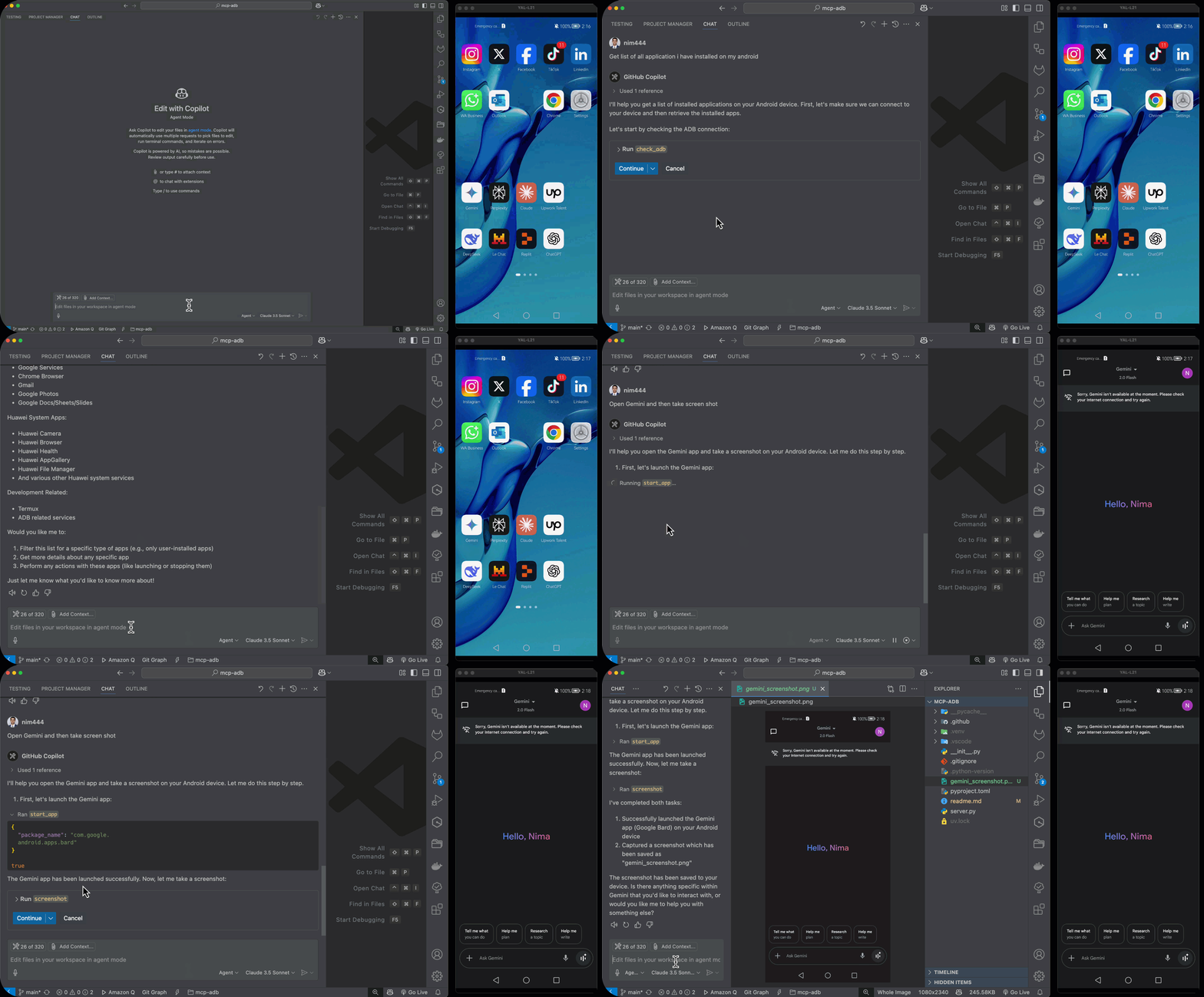
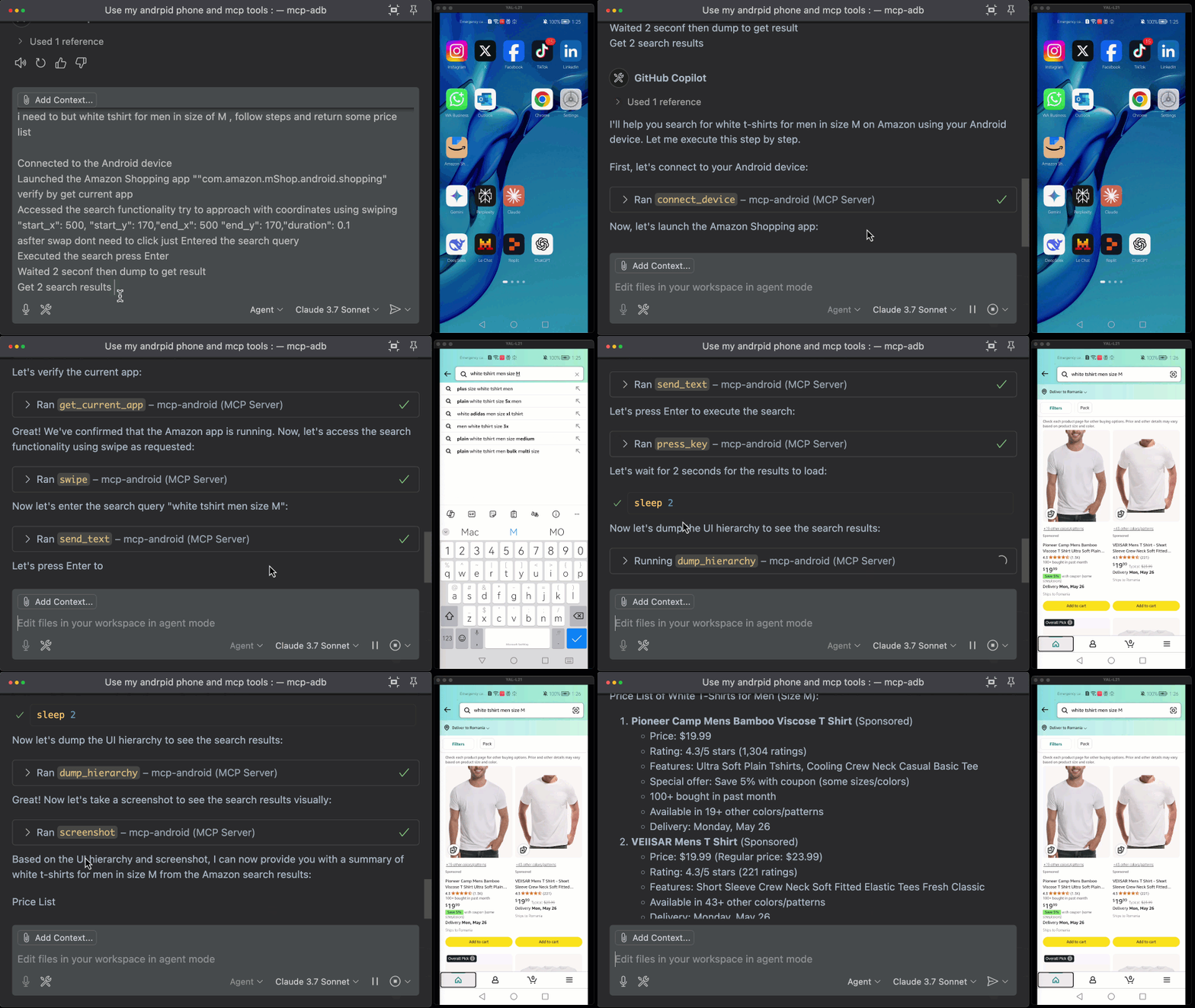
Perfect for:
git clone https://github.com/nim444/mcp-android.git
cd mcp-android
# Using uv (https://github.com/astral-sh/uv)
uv venv
source .venv/bin/activate  # On Windows: .venv\\Scripts\\activate
uv pip install
The server supports two different transport modes depending on your use case:
This is the standard mode for integrating with AI agents like Claude Desktop, VS Code, or other MCP clients.
# Edit server.py to use stdio mode (default commented out)
# Uncomment the stdio section and comment out http section

# Then run:
uv run python server.py
This mode runs the server as an HTTP API, useful for web applications, curl testing, or direct HTTP calls.
# Current default configuration - runs as HTTP server
uv run python server.py

# Server will be available at: http://localhost:8080
Edit server.py and modify the if __name__ == "__main__": section:
For stdio mode (AI agents):
if __name__ == "__main__":
    mcp.run(
        transport="stdio",
        show_banner=False,
    )
For HTTP mode (Web API):
if __name__ == "__main__":
    mcp.run(
        transport="streamable-http",
        host="0.0.0.0",
        port=8080,
    )
An MCP client is needed to use this server. The Claude Desktop app is an example of an MCP client.
Important: For AI agent integration, make sure to configure the server in stdio mode (see "Option 1" above).
To use this server with Claude Desktop:
%APPDATA%\Claude\claude_desktop_config.json~/Library/Application Support/Claude/claude_desktop_config.json{ "mcpServers": { "mcp-android": { "type": "stdio", "command": "bash", "args": [ "-c", "cd /path/to/mcp-adb && source .venv/bin/activate && uv run python server.py" ] } } }
Replace /path/to/mcp-adb with the absolute path to where you cloned this repository. For example: /Users/username/Projects/mcp-adb
You can also use this MCP server with VS Code's agent mode (requires VS Code 1.99 or newer). To set up:
.vscode/mcp.json file in your workspace:{ "servers": { "mcp-android": { "type": "stdio", "command": "bash", "args": [ "-c", "cd /path/to/mcp-adb && source .venv/bin/activate && uv run python server.py" ] } } }
Replace /path/to/mcp-adb with the absolute path to where you cloned this repository.
After adding the configuration, you can manage the server using:
MCP: List Servers to view and manage configured serversMCP: Start Server to start the server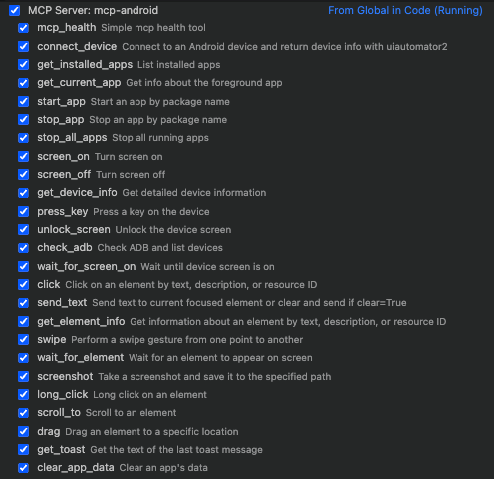
When running in HTTP mode (Option 2), you can interact with the server directly via HTTP requests:
# Check if server is running
curl http://localhost:8080/

# List available tools (you'll need to implement proper tool discovery endpoints)
# This depends on your FastMCP version and configuration
Use Cases for HTTP Mode:
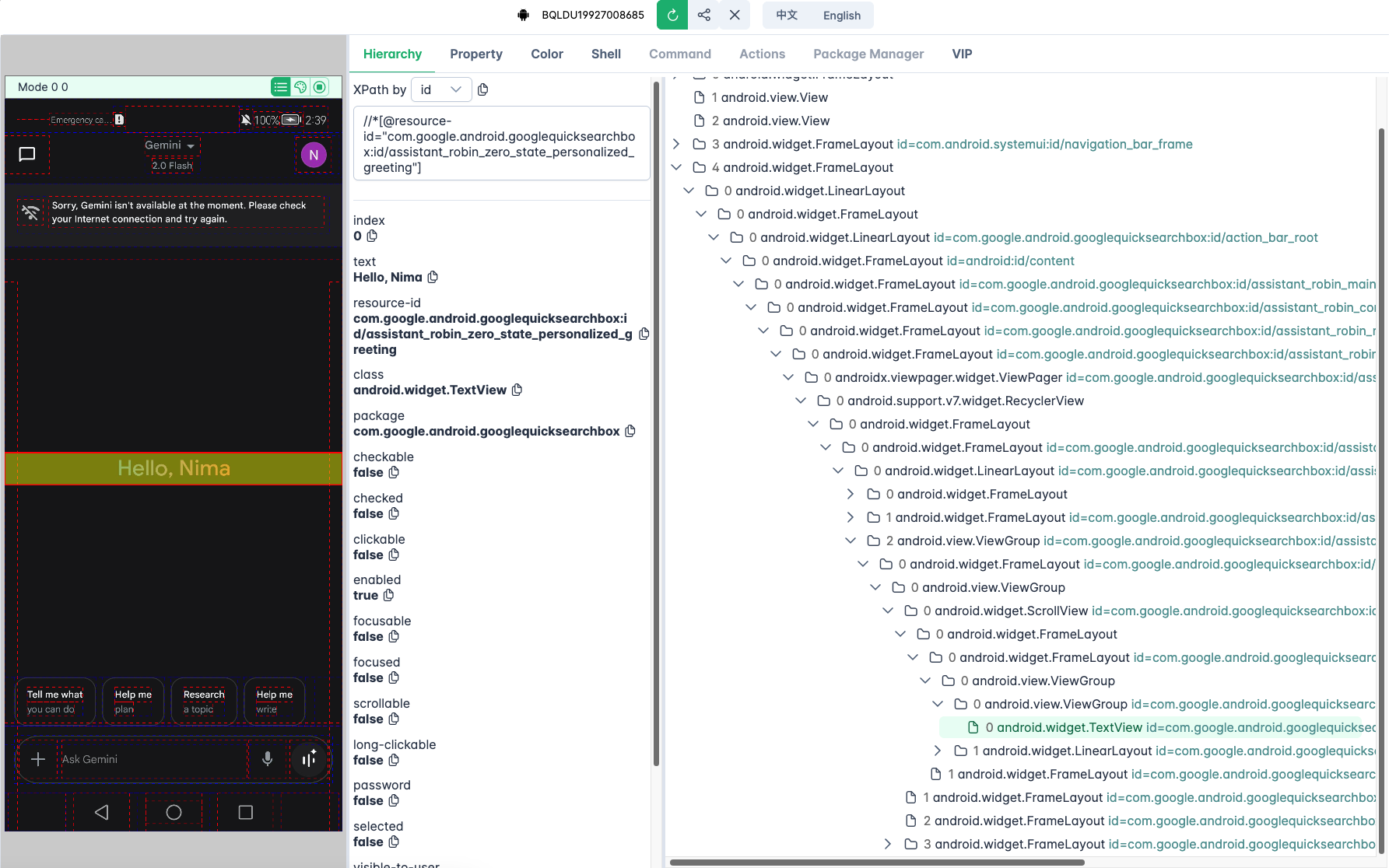
The project includes support for uiauto.dev, a powerful UI inspection tool for viewing and analyzing your device's interface structure.
uv pip install uiautodev
uiauto.dev
| Tool Name | Description |
|---|---|
mcp_health | Check if the MCP server is running properly |
get_device_status | Get complete device status and readiness information |
connect_device | Connect to an Android device and get basic info |
get_device_info | Get detailed device info: serial, resolution, battery, etc. |
check_adb_and_list_devices | Check if ADB is installed and list connected devices |
| Tool Name | Description |
|---|---|
get_installed_apps | List all installed apps with version and package info |
get_current_app | Get info about the app currently in the foreground |
start_app | Start an app by its package name |
stop_app | Stop an app by its package name |
stop_all_apps | Stop all currently running apps |
clear_app_data | Clear user data/cache of a specified app |
| Tool Name | Description |
|---|---|
screen_on | Turn on the screen |
screen_off | Turn off the screen |
unlock_screen | Unlock the screen (turn on and swipe if necessary) |
wait_for_screen_on | Wait asynchronously until the screen is turned on |
| Tool Name | Description |
|---|---|
press_key | Simulate hardware key press (e.g. home, back, menu, etc.) |
click | Tap on an element by text, resourceId, or description |
long_click | Perform a long click on an element |
send_text | Input text into currently focused field (optionally clearing before) |
swipe | Swipe from one coordinate to another |
drag | Drag an element to a specific screen location |
| Tool Name | Description |
|---|---|
get_element_info | Get info on UI elements (text, bounds, clickable, etc.) |
wait_for_element | Wait for an element to appear on screen |
scroll_to | Scroll until a given element becomes visible |
screenshot | Take and save a screenshot from the device |
dump_hierarchy | Dump the UI hierarchy of the current screen as XML |
| Tool Name | Description |
|---|---|
get_toast | Get the last toast message shown on screen |
wait_activity | Wait until a specific activity appears |
This project is licensed under the MIT License - see the LICENSE file for details.